
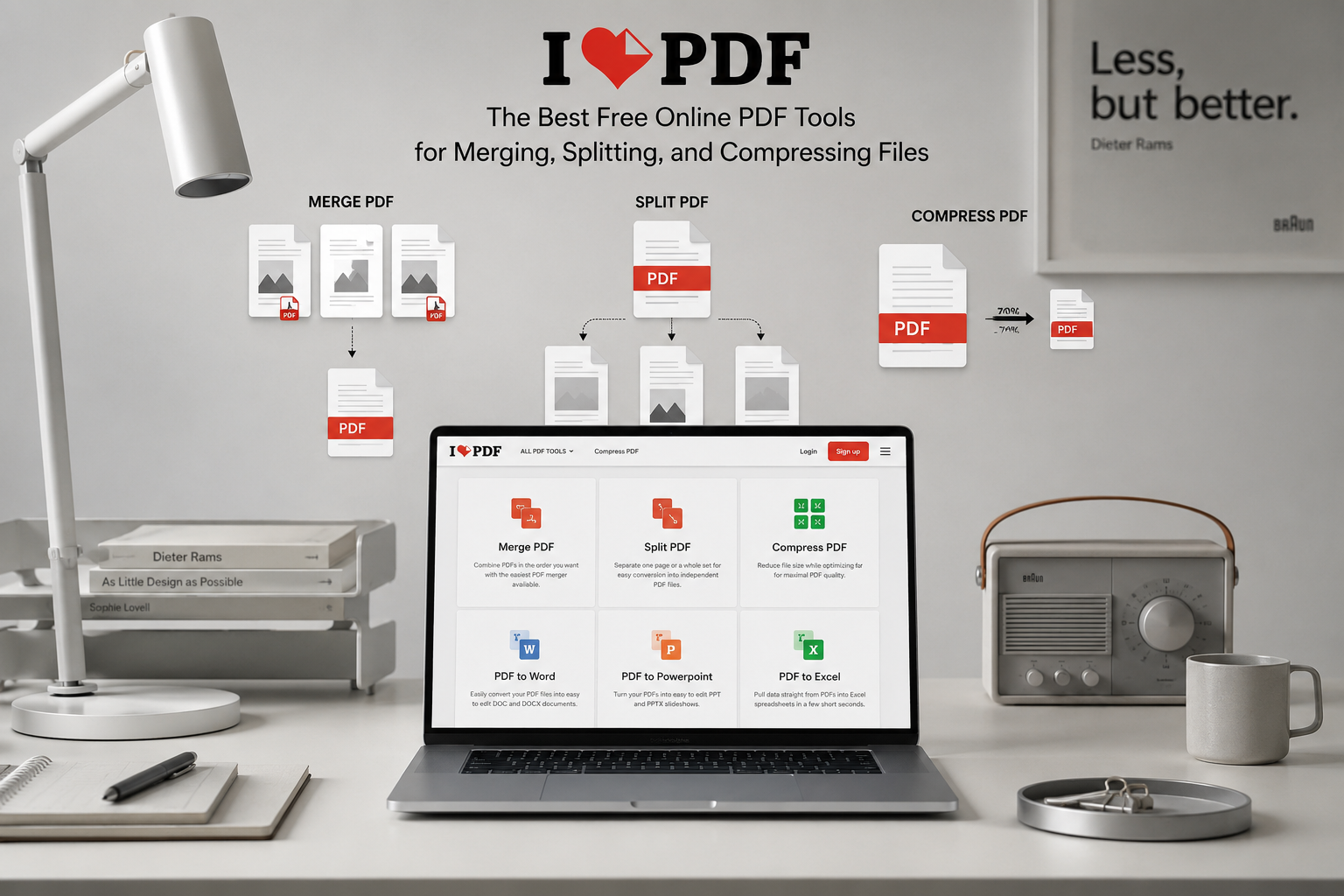
Working with PDF files can feel confusing at first. Maybe you need to join several pages into one file, remove a page, or make a large document small enough to email. These tasks may sound technical, but they can be much easier with the right online tool.
I Love PDF is a popular website that brings many PDF features together in one place. In this guide, we show how beginners can use it to merge, split, compress, convert, and organize PDF files without installing complicated software.
Whether you are handling school notes, work documents, invoices, or travel papers, a few simple clicks can save time. Let’s explore the most useful tools and learn how to use them with confidence.
What Is I Love PDF?
I Love PDF, also written as ilovepdf, is an online service for working with PDF documents. A PDF is a file type designed to keep the same layout on different devices, so text, images, and pages usually look the same on a phone, tablet, or computer.
You can visit the official I Love PDF website and choose a tool from the homepage. The tools are grouped by task, which makes it easier to find what you need. You do not have to be a PDF expert or download a large desktop program.
The free tools cover many common jobs. You can combine PDF files, separate pages, reduce file size, change a PDF into a Word document, add page numbers, and more. Some advanced features may require an account or paid plan, but many everyday tasks are available for free.
The service works in a web browser. That means we can use it on many computers and mobile devices with an internet connection. We simply upload a file, choose the settings, and download the finished document.
How to Merge PDF Files
Merging means joining two or more PDF files into one document. This is helpful when we have separate pages that belong together. For example, we might have a cover letter, resume, and certificates saved as different files but want to send them as one attachment.
Simple steps for merging files
- Open the I Love PDF website and select Merge PDF.
- Click the button to choose PDF files from your device.
- Select the documents you want to combine.
- Drag the files into the order you want them to appear.
- Click the merge button.
- Download the new PDF and open it to check the pages.
The order matters. If we choose a resume first and a cover letter second, the final document will follow that order. Most merge tools allow us to rearrange files before creating the final PDF, so we can fix the sequence easily.
We should also check for duplicate pages. Sometimes a file includes an extra blank page or an old version of a document. Removing those files before merging keeps the final PDF neat and professional.
A merged PDF is often easier to share because we only need to attach one file. It also helps the reader find all related information in one place. For more file organization ideas, see our guide to organizing digital documents.
How to Split a PDF into Separate Files
Splitting a PDF means breaking one large document into smaller PDF files. This is useful when a document contains many sections, but we only need to send or save a few pages.
Imagine receiving a 30-page report when you only need pages 8 through 10. Instead of sending the entire report, we can use the Split PDF tool to create a smaller file with only the useful pages. This makes sharing simpler and avoids sending information that the reader does not need.
Ways to split a PDF
With I Love PDF, we can usually split a file in two main ways. We can select specific pages, such as pages 2, 5, and 7, or divide the document into groups of pages. The best choice depends on how we plan to use the new files.
To begin, choose Split PDF and upload the document. We can then enter page ranges or select pages on the screen. For example, entering “1–4” creates a file containing the first four pages. After choosing the pages, click the split button and download the result.
Splitting is also helpful for school and office work. We might separate a single report into chapters, save each invoice as its own file, or send only a signed page to someone. Before sharing a smaller PDF, we should open it and make sure it contains the correct pages.
How to Compress a PDF
A PDF can become very large when it contains photos, scans, or detailed graphics. A large file may take longer to upload and could be too big for an email attachment. Compressing a PDF reduces its file size while trying to keep the document readable.
Choosing a compression level
To compress a file, select Compress PDF and upload your document. The tool may offer different levels, such as extreme, recommended, or less compression. A stronger setting creates a smaller file, while a gentler setting usually keeps more image quality.
For a normal text document, recommended compression is often a good starting point. If the PDF contains important photos or charts, less compression may protect the appearance of those images. If we only need to email a scanned form, stronger compression may be perfectly acceptable.
After compression, always open the new file. Check that the words are clear, images are visible, and no pages are missing. The goal is not simply to create the smallest possible file. The goal is to create a file that is small enough to share and clear enough to use.
Compression is especially useful for online forms, job applications, school projects, and business documents. It can also save storage space when we keep many files on a phone or computer.
Other Useful PDF Tools
Merging, splitting, and compressing are some of the most popular features, but I Love PDF includes several other helpful options. These tools can save us from repeating work or searching for separate programs.
One common feature is PDF to Word conversion. This changes a PDF into an editable Word file, which can help when we need to update text. The result may need a little cleanup, especially if the original PDF uses unusual fonts, columns, or images. We should review the converted file before sending or printing it.
We can also convert Word, PowerPoint, or image files into PDFs. This is useful when we want to share a document with a fixed layout. A PDF usually prevents accidental changes to the way the document looks.
Other tools may help us rotate pages, add page numbers, insert a watermark, unlock a file, or protect a document with a password. A watermark is light text or an image placed on a page to show ownership or status. A password can help protect private information, but we should remember it carefully because losing it may make the file difficult to open.
Before using any conversion tool, we should check the finished document. Text may move slightly, images may change size, and links may need testing. A quick review takes less than a minute and can prevent an embarrassing mistake.
Safe and Smart PDF Habits
Online PDF tools are convenient, but we should think carefully about the files we upload. Avoid uploading documents that contain highly sensitive information unless we understand the website’s privacy and security policies. Examples include passports, bank statements, medical records, and documents containing private passwords.
Use a secure internet connection when handling personal files. A private home network is generally a better choice than an open public Wi-Fi network. After downloading the finished file, check that it saved to the correct folder and delete temporary copies if they are no longer needed.
File names also matter. Instead of saving a document as “download.pdf,” use a clear name such as “March-Invoice-2025.pdf.” This makes the file easier to find later and reduces the chance of attaching the wrong document.
We should keep the original file until we are sure the new version works. For example, do not delete a large PDF immediately after compressing it. Open the compressed copy first, check every page, and then decide whether the original is still needed.
Finally, use the right tool for the job. Merge files when they belong together, split them when different pages need separate handling, and compress them when the file is too large. Simple choices like these make PDF work feel much more manageable.
A Beginner’s Workflow for Everyday PDF Tasks
A simple workflow can help us avoid confusion. First, collect the files we need and place them in an easy-to-find folder. Give each file a useful name so we can recognize it before uploading.
Next, decide what the final document should look like. If we need one complete file, start with Merge PDF. If we only need selected pages, choose Split PDF. If the document is too large to email, use Compress PDF before sharing it.
After using the tool, download the new file and inspect it. Turn through every page, read a few lines, and check important numbers, names, and dates. If we converted the file, confirm that the layout and formatting still look correct.
When the document is ready, share it through the method requested by the recipient. Email is often enough for a small PDF. For larger files, we may need a cloud storage link or another file-sharing service. Keep a copy of the final version so we know exactly what was sent.
This workflow works for many situations, from submitting an assignment to preparing paperwork for a job application. For another helpful resource, visit our beginner guide to PDF to Word conversion.
Conclusion
I Love PDF makes common PDF tasks easier for beginners. With its merge, split, and compress tools, we can organize documents, choose the pages we need, and share smaller files in just a few steps.
The best habit is to review every finished file before sending it. Once we practice with a few simple documents, working with PDFs becomes a normal part of everyday computer use.
FAQs
1. Is I Love PDF free to use?
Yes, I Love PDF offers free access to many common tools, including merging, splitting, and compressing PDFs. Some limits or advanced features may require an account or paid plan.
2. Can I use I Love PDF on my phone?
Yes, the website works in a mobile web browser on many phones and tablets. A strong internet connection and easy access to your files will make the process smoother.
3. Does merging PDFs change the original files?
No, merging normally creates a new combined PDF and leaves the original files unchanged. We can keep the original documents as backups or delete them later if they are no longer needed.
4. What is the difference between splitting and compressing a PDF?
Splitting separates one PDF into smaller documents or selected page groups. Compressing reduces the size of the same document, usually without removing its pages.
5. Can I convert a PDF to Word with I Love PDF?
Yes, the PDF to Word tool can turn many PDFs into editable Word documents. The result may need some formatting checks, especially when the original file includes tables, images, or unusual page designs.